HTTP to HTTPS redirection on IIS
- SSL Installation
- 1,852 views
- Aelswith E.

After an SSL certificate is installed, a secure connection (https://) is not forced by default, and a website remains accessible via regular insecure http:// bypassing SSL/TLS protocols. It means that a website visitor may send sensitive data over an unencrypted channel unless he/she explicitly specifies https:// as a protocol he/she would like to use for connection.
Thanks to HTTP to HTTPS redirection, a visitor requesting to initiate an unencrypted (http://) session will be automatically redirected to an encrypted one (https://) secured by SSL/TLS protocol.
Follow the below steps to enable the automated redirect from http:// to https:// on IIS server with the help of IIS manager and URL Rewrite module.
1. Install the URL Rewrite module .
2. Re-open (if opened) IIS Manager and select the website you would like to apply the redirection to in the left-side menu.
3. Double-click on the URL Rewrite icon.
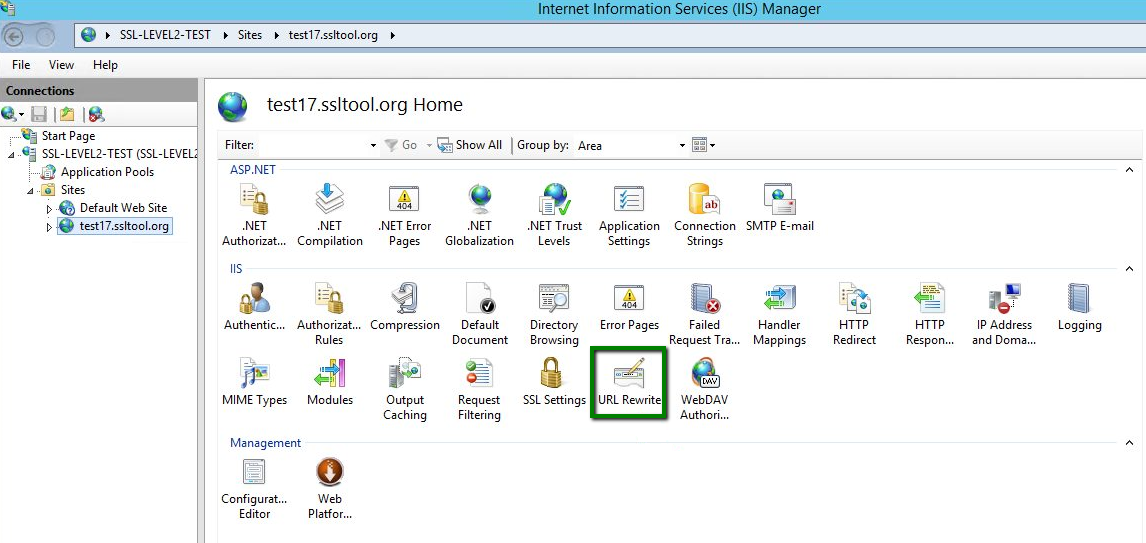
4. Click Add Rule on the right-side menu.
5. Select Blank Rule > OK.
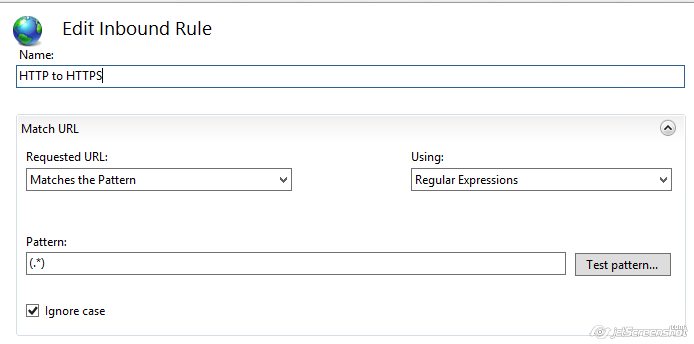
6. Enter the rule name of your choice.
7. In the Match URL section:
- select Matches the Pattern in the Requested URL drop-down menu;
- select Regular Expressions in the Using drop-down menu;
- enter the following pattern in the Match URL section: (.*);
- check the box Ignore case.
8. In the Conditions section select Match all in the Logical Grouping drop-down menu and click Add.
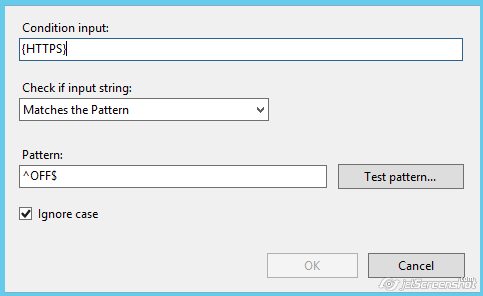
9. In the prompted window:
- enter {HTTPS} as a condition input;
- select Matches the Pattern from the drop-down menu;
- enter ^OFF$ as a pattern;
- Click OK.
10. In the Action section select Redirect as an action type and specify the following for Redirect URL:
https://{HTTP_HOST}/{R:1}
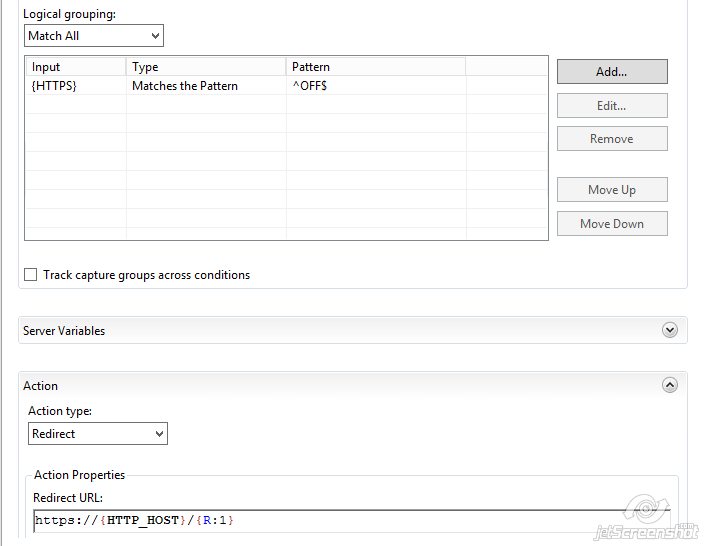
11. Check the box Append query string.
OPTION 2: Else, you can specify the Redirect Rule as “https://{HTTP_HOST}{REQUEST_URI}” and un-check the Append query string box. The Action type is also to be set as Redirect.
12. Select a Redirection Type of your choice.
13. Click on Apply on the right side of the Actions Menu.