How to work with Node.js App
- cPanel Software Management
- 2,269 views
- Aelswith E.
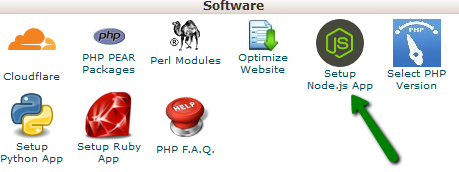
In order to access the application, open cPanel >> Setup Node.js App.
Â
For cPanel Basic Theme:

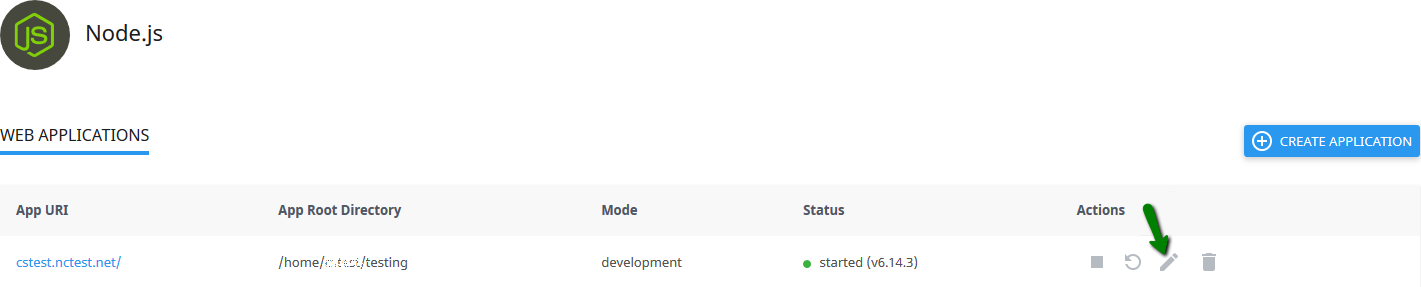
The following interface will be displayed there:

- App URI (application URI including the domain name)
- App Root Directory (root directory of the application)
- Mode (can be production or development)
- Status – started/stopped (displays if an application is running or not and version of the application)
- Actions (allows to start, restart, stop, edit, and remove a particular application)
There is also an option to create a new application.
If you wish to create a new application, go to the cPanel >> Setup Node.js App >> Create application.

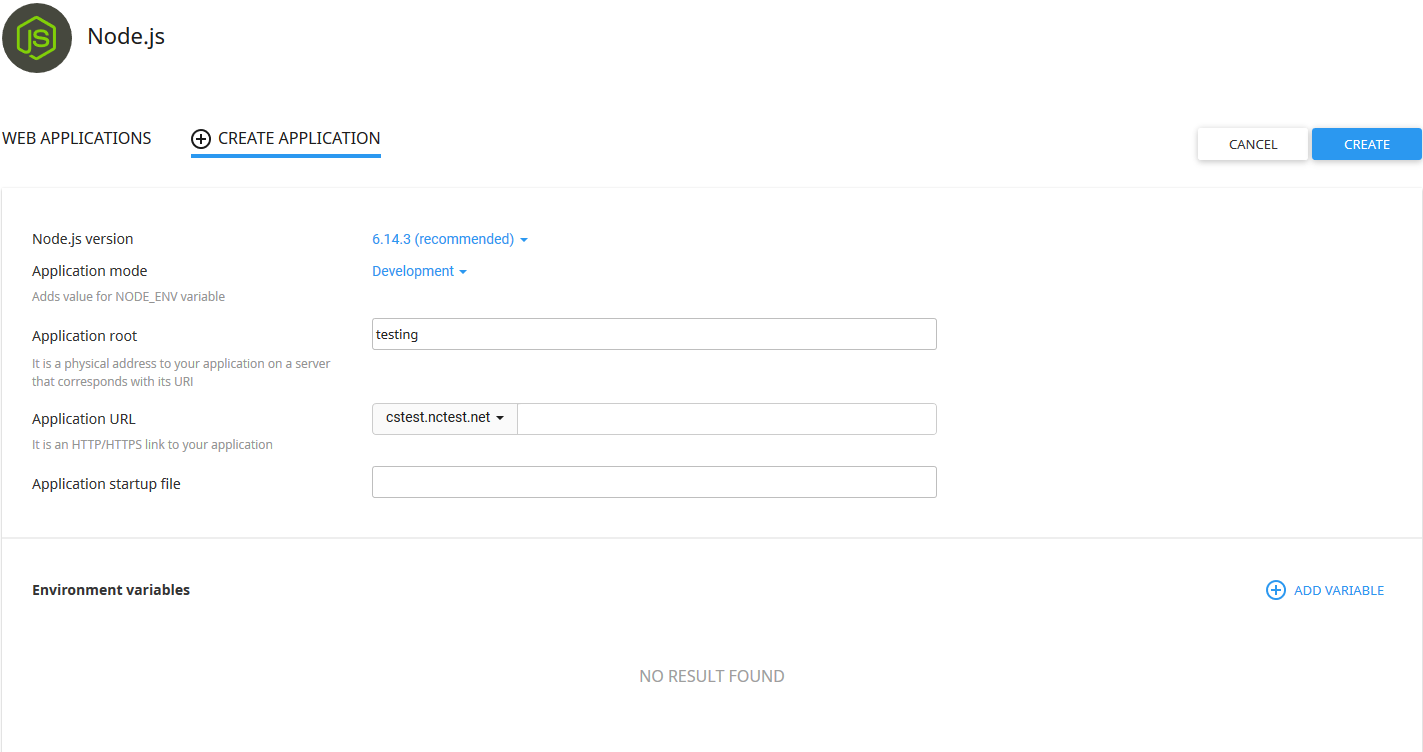
- Node.js version
- Application mode (available modes are Production and Development)
- Application root (the path to the application on a server that corresponds with its URI. You can enter either the existing folder or specify a new folder that will be created in the root directory of that domain)
- Application URL (fill in an HTTP/HTTPS link to the application)
- Application startup file (use the NAME.js format)
If you wish to add environment variables, click Add Variable to specify a name and a value.
Â
After the application is created, you will be prompted to the application dashboard.
As soon as the environment is set, you can upload your application files to the application root directory.

To start a stopped application, do the following:
1. Click the Start icon in the Actions column in the stopped application row.


Â
1. Click the Stop icon in the Actions column in the started application row.
2. Note that when an action is completed the Stop icon changes to the Start icon.

PLEASE NOTE: During the restart, it wonâ$™t be possible to perform any actions with the app.
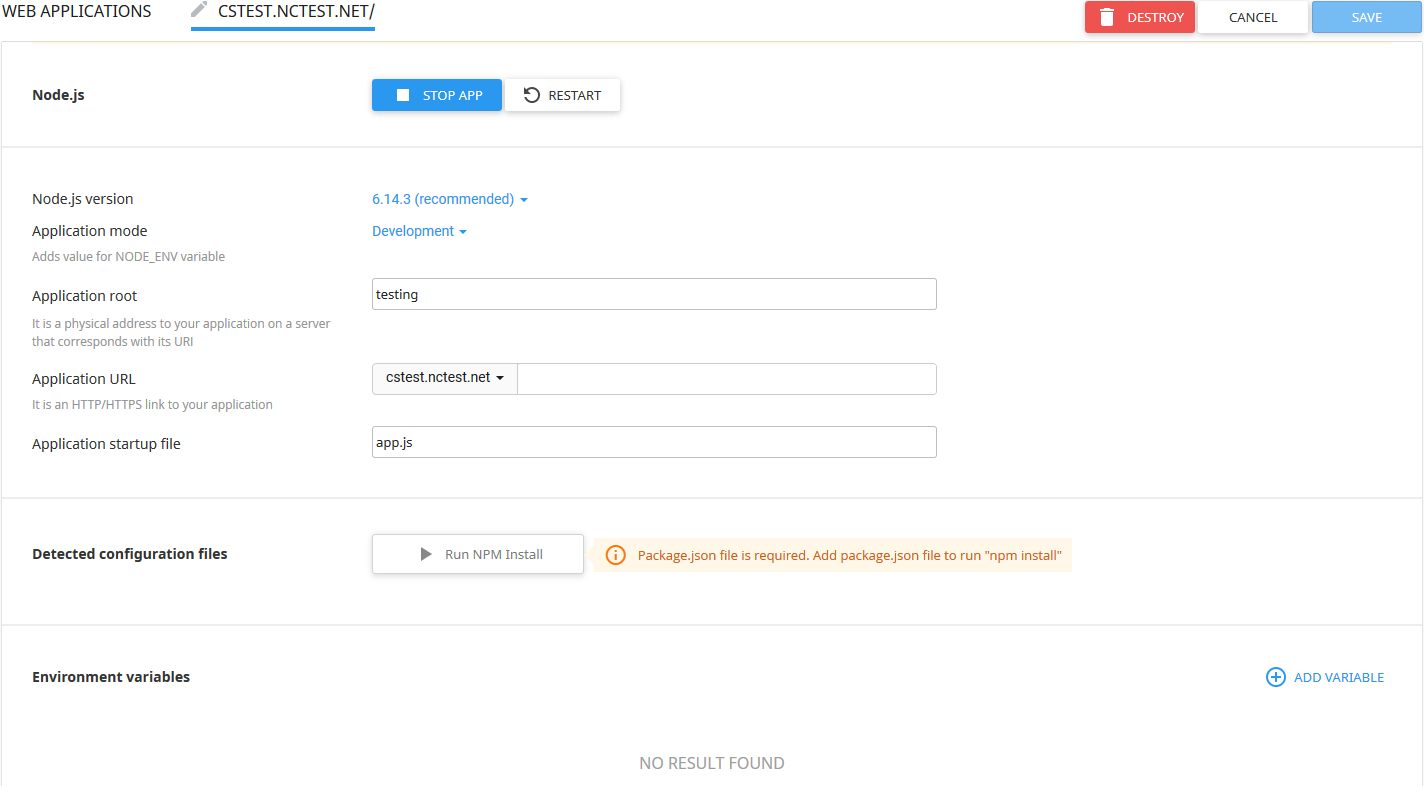
- Restarting the application
- Stopping the application
- Destroying the application
- Changing the Node.js version (this version switch can take up to 5 minutes)
- Changing the Application mode from Production to Development (vice versa)
- Modifying the Application root
- Modifying the Application URL (specify in a field an HTTP/HTTPS link to the application)
- Modifying the Application startup file (specify as NAME.js file)
- Running NPM install command (click the Run NPM Install button to install the package(s) described in the package.json file)
- Adding Environment variables
In order to use Angular, it is needed to create a Node.js application in cPanel first. Then you will be able to enter the virtual environment and using the NPM install command run your Angular project.
