How to connect to a database using Sequel Pro
- MySQL Question
- 1,873 views
- Aelswith E.

Although remote MySQL connection is disabled on our shared servers due to security reasons, you can still easily set up an SSH tunnel between your PC and our server using SSH-tunneling with the MySQL port (3306) forwarding. It will allow you to connect to the database remotely via the SSH tunnel.
To connect to your MySQL database with the Sequel Pro MySQL client, you should perform the following steps:
1. Contact our hosting support via Live chat or the ticket system in order to enable SSH access for your account
2. Launch Sequel Pro
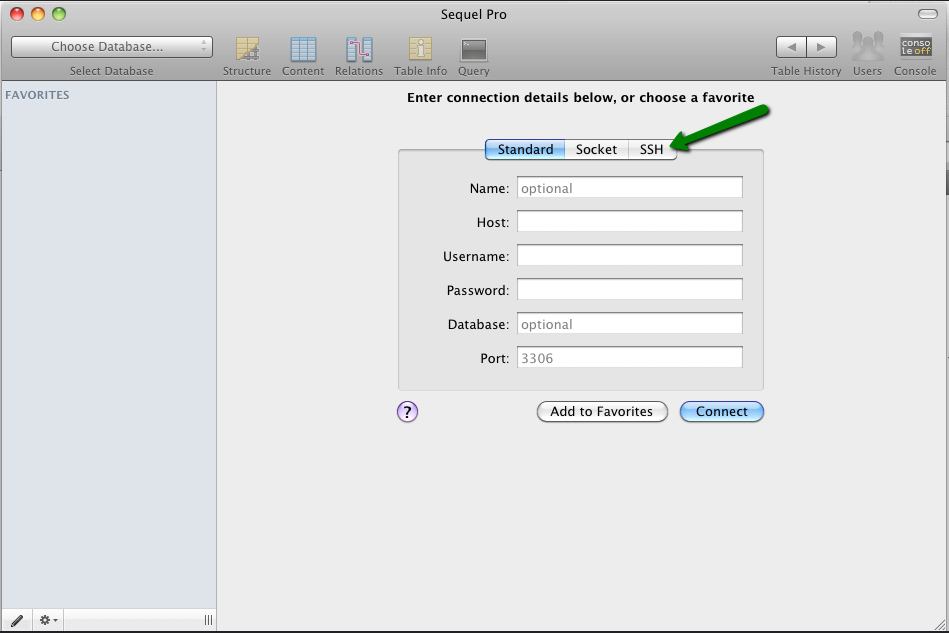
3. Choose SSH under the connection details:
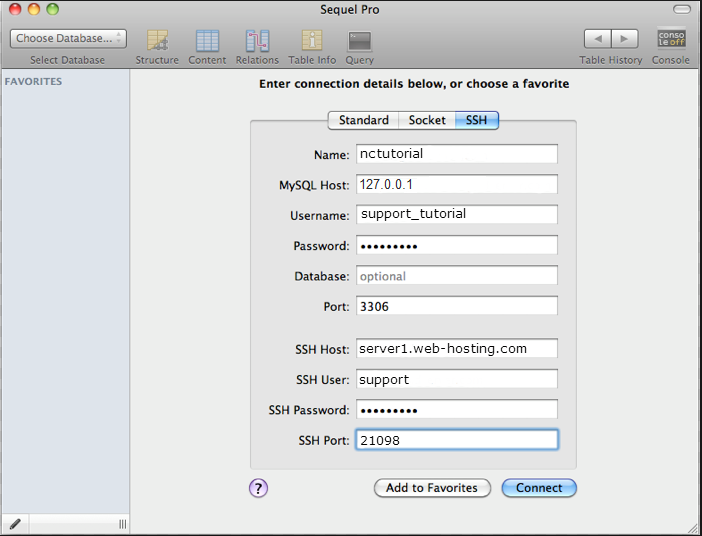
4. Fill out the fields as follows:
Name: the name you want to give the favorite
MySQL Host: 127.0.0.1
Username: your MySQL database username
Password: password for your MySQL user
Database: (optional) leave blank to have access to all of your databases
Port: 3306
SSH Host: server your account is hosted on (e.g., server1.web-hosting.com)
SSH user: your cPanel username
SSH Password: your cPanel password
SSH Port: 21098
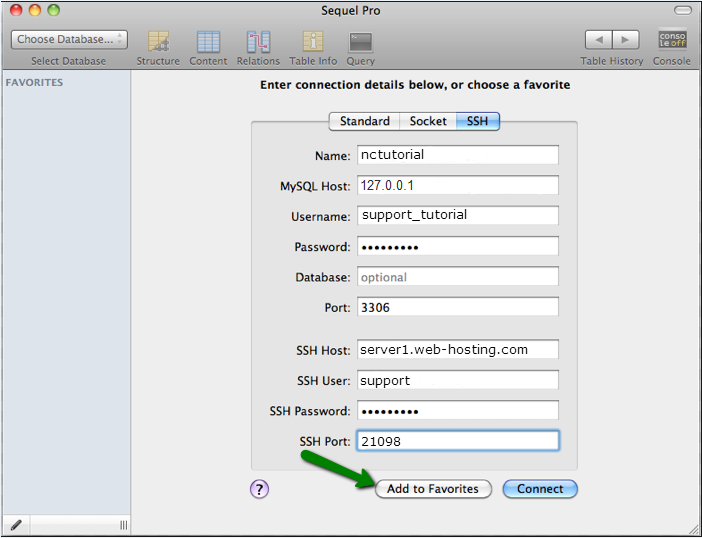
5. Click on Add to Favorites:
6. You will see your new connection on the left:
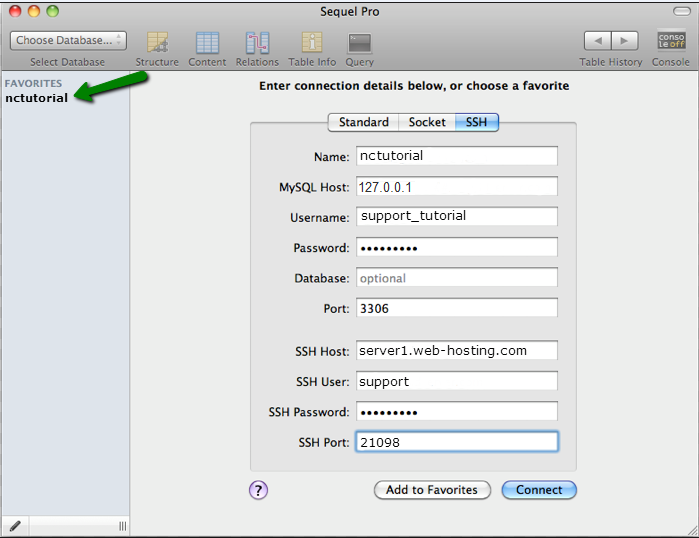
7. Double-click on it to connect to your MySQL databases:
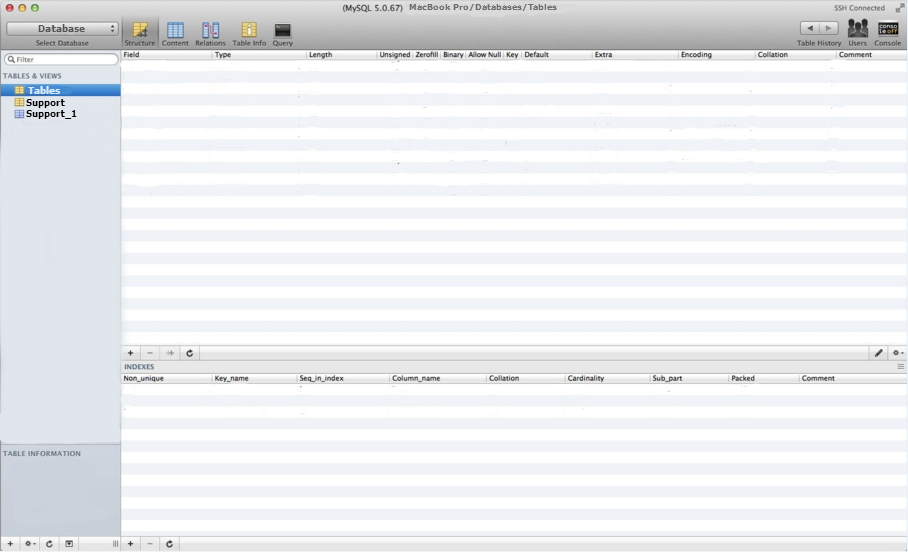
That’s it!
             Â
                     Need any help? Contact our HelpDesk