How to create a subdomain in cPanel
- cPanel Question
- 1,503 views
- Aelswith E.

Subdomains can point to different sections of your website. In order to create a subdomain in your cPanel account, follow the next steps.
1. Log into your cPanel >> Domains section >> Subdomains menu.
For cPanel Basic Theme:
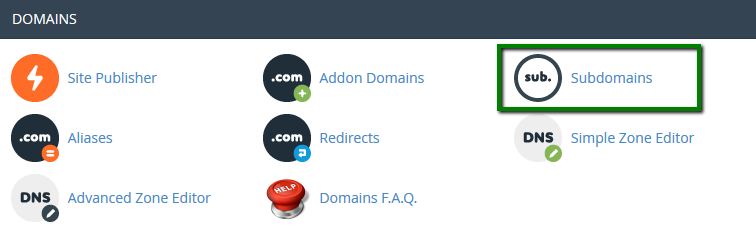
For cPanel Retro Theme:
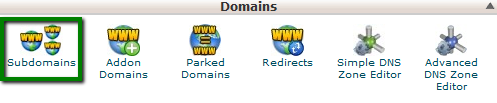
The Subdomains menu can be quickly accessed via cPanel Shortcuts in the Namecheap account.
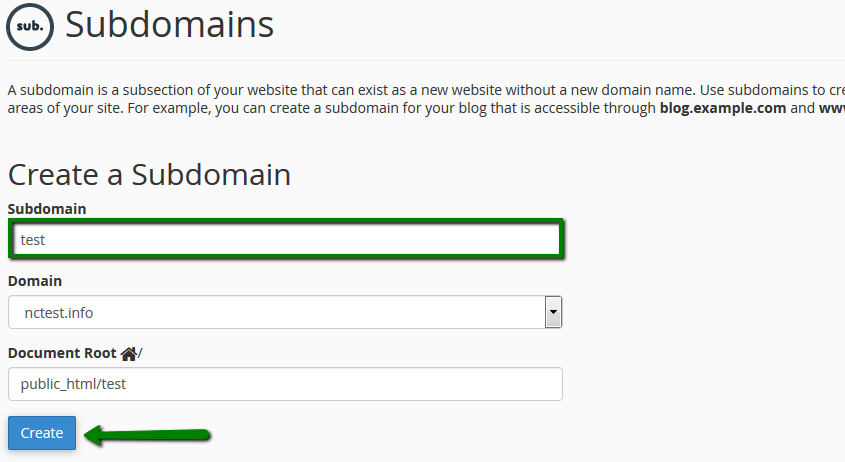
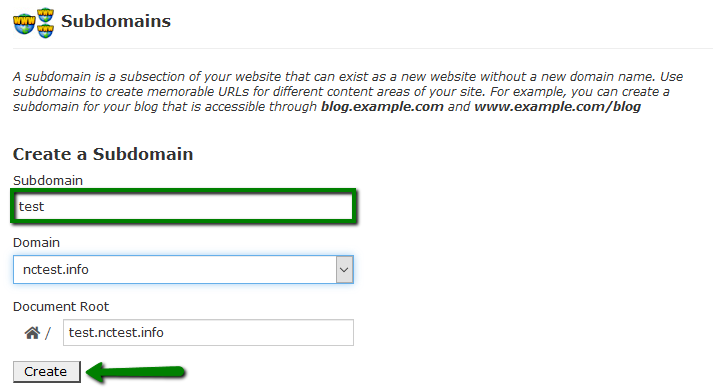
2. Enter the following details for your subdomain:
Subdomain: the name of your subdomain
Domain: choose the domain name you wish to create subdomain for from this drop-down menu
Document Root: the root directory for your subdomain (for example, it can be /public_html/subdomain)
3. Click on Create.
For cPanel Basic Theme:
For cPanel Retro Theme:
NOTE: the newly created subdomain should be available online within 5-10 minutes. However, it may take up to 30-40 minutes for the newly created record to fully propagate world-wide.
You can also create a wildcard subdomain. Wildcard subdomains allow you to point all the subdomains (existing and non-existing ones) to a specific folder in your account.
It means that if you enter any subdomain in your browser (for example, test.domain.com – not existing, or blog.domain.com – existing), it will show the same content that you uploaded to the folder for the wildcard subdomain.
That’s it!